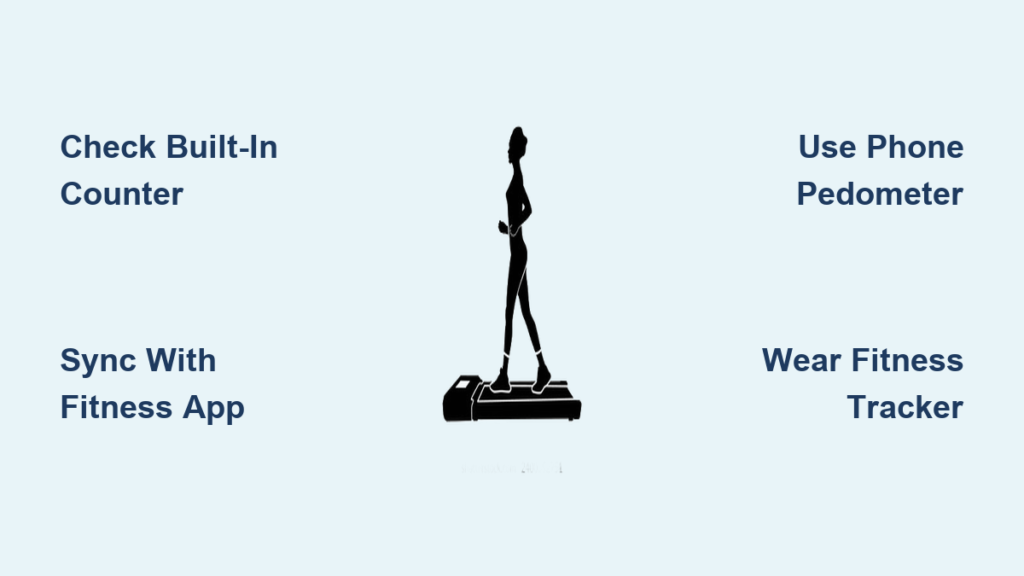
Walking pads have transformed home fitness routines, letting you burn calories while catching up on emails or watching your favorite shows. But here’s the frustrating truth: many users never know exactly how many steps they’re taking during these sessions. Without accurate step tracking, you’re essentially walking blind toward your fitness goals. Whether you’re using a budget-friendly walking pad or a premium model, this guide reveals proven methods to capture every step you take. You’ll discover how to leverage built-in features, sync with apps, and even troubleshoot common tracking issues—so you can finally see real progress toward your daily step targets.
Built-In Step Counter Features on Your Walking Pad
Your walking pad likely has a hidden step counter that’s more accessible than you think. Most modern models integrate step tracking directly into the console display, using belt movement sensors to calculate steps based on distance traveled. To activate this feature, power on your walking pad and look for a “Steps” or “Distance” indicator on the digital screen—often represented by a foot icon. Higher-end models like the WalkingPad Pro or GoOwl Smart Walking Pad require you to input your height first through the settings menu, which helps the system estimate your stride length more accurately.
Don’t assume your built-in counter works automatically. Many users miss this critical step: you must start walking at a minimum speed of 1.5 mph for the sensor to engage properly. If your display shows zero steps despite walking, check whether your unit requires you to press a dedicated “Start Tracking” button before your session begins. Some models only count steps when you’ve selected specific workout modes like “Walking” or “Jogging” rather than operating in manual speed control.
Why Built-In Counters Often Undercount Your Steps
Built-in step counters frequently underreport your actual steps due to their belt-based measurement system. These sensors register belt rotations rather than your actual foot movements, causing two common issues: they miss steps when you pause briefly during your walk, and they count partial belt movements as full steps when you change speeds. Test your counter’s accuracy by walking 100 steps manually while counting aloud—then compare the result with your pad’s display. Most users find discrepancies of 10-15% due to stride length miscalculations.
Sync Walking Pad Steps with Fitness Apps

Transform raw step data into meaningful progress by connecting your walking pad to fitness apps that store historical data. The pairing process takes under two minutes: download your pad’s companion app (like WalkingPad’s official app or GoOwl Fitness), enable Bluetooth on both devices, and follow the in-app prompts to establish a connection. Once paired, your step counts automatically sync to the app during and after each session, creating a permanent record of your activity.
Troubleshoot App Connection Failures in 60 Seconds
When your walking pad refuses to connect to fitness apps, follow this rapid troubleshooting sequence: First, restart both your walking pad and phone—this resolves 70% of connection issues. Next, forget the device in your phone’s Bluetooth settings and re-pair from scratch. If problems persist, check for firmware updates in your walking pad’s app settings menu; manufacturers regularly release updates that fix connectivity bugs. As a last resort, reset your walking pad to factory settings (consult your manual for the specific button combination), then attempt pairing again.
Smartphone Pedometer Tracking Without Extra Devices
Your phone’s built-in step counter works surprisingly well with walking pads if you position it correctly. iPhones automatically track steps through the Health app when you grant Motion & Fitness permissions, while Android users should enable Google Fit and ensure “Improve location accuracy” is turned on in system settings. For maximum accuracy during walking pad sessions, secure your phone in a front pocket or armband—never place it on a nearby desk or treadmill console, as this causes significant undercounting.
Optimize Phone Tracking for Walking Pad Sessions
Phone-based step counters use complex algorithms that sometimes misinterpret walking pad motion. Combat this by calibrating your phone’s pedometer before your first session: walk exactly 200 steps while counting manually, then open your phone’s health settings and enter this verified count. During walking pad use, maintain a natural arm swing rather than holding onto the treadmill rails, as restricted arm movement confuses your phone’s accelerometer. Check your step count immediately after finishing—don’t wait hours, as background processing might merge your walking pad steps with other activities.
Wearable Device Tracking for Maximum Accuracy
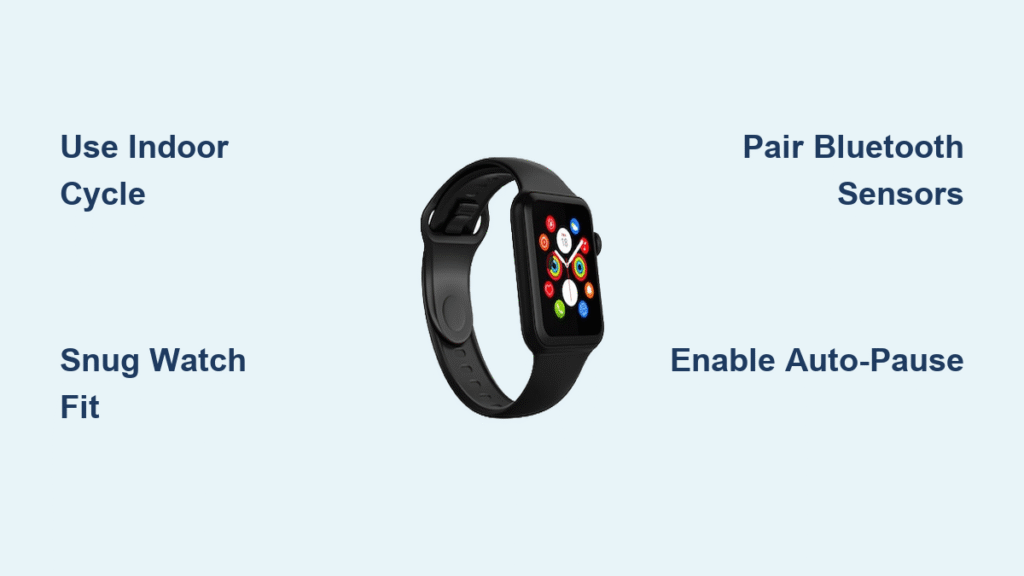
Fitness trackers like Fitbit Charge 6 and Apple Watch Series 9 deliver the most precise step counting for walking pad sessions. Unlike phone or built-in counters, these devices use multi-axis accelerometers combined with gyroscope data to distinguish walking motion from other movements. For optimal results, wear your device snugly on your non-dominant wrist two finger-widths above your wrist bone—this positioning captures natural arm swing patterns without interference.
Fix Common Wearable Tracking Errors
When your smartwatch undercounts walking pad steps, it’s usually due to improper workout mode selection. Before stepping on your pad, open your wearable’s workout app and select “Indoor Walk” rather than relying on automatic detection. During your session, periodically check that your device hasn’t accidentally paused tracking—this happens when your arm swing diminishes during long sessions. After finishing, wait 30 seconds before checking your step count; wearables often continue processing motion data during this cooldown period.
Manual Step Tracking Without Technology

When technology fails, revert to reliable manual tracking using simple math. First, determine your exact stride length by walking 10 normal steps on flat ground and measuring the distance in inches. Divide this number by 10 to get your average stride length—most adults fall between 28-32 inches. During walking pad sessions, multiply the displayed distance (in miles) by 63,360 (inches per mile), then divide by your stride length to calculate total steps.
Create an Effective Manual Tracking System
Develop a consistent manual tracking routine by keeping a dedicated notebook beside your walking pad. Record three key metrics after each session: time walked, distance shown on display, and calculated steps. Use a simple formula in Google Sheets to automate calculations: =(B2*63360)/C2 where B2 contains distance and C2 holds your stride length. Cross-verify your manual count against your walking pad’s built-in counter weekly to identify any systematic errors in your calculations.
Calibrate Any Tracking Method for Precision
Regardless of your chosen tracking method, calibration transforms rough estimates into reliable data. For built-in counters, walk exactly 100 steps while counting manually, then access your walking pad’s settings menu to adjust the step calibration factor. If your counter shows 90 steps for your 100-step test, increase the calibration value by 11% (100/90=1.11). Most companion apps offer similar calibration options under “User Profile” or “Device Settings.”
Perform the Ultimate Accuracy Test
Validate your tracking system with this foolproof method: Wear a fitness tracker on one wrist while holding your phone in the opposite hand during a 10-minute walking pad session. Afterward, compare all three data points (built-in counter, phone, wearable). The wearable count is typically most accurate—use this as your gold standard to adjust your other tracking methods. Repeat this test monthly as your walking pattern evolves with increased fitness.
Troubleshoot Persistent Tracking Problems
When step counts remain inconsistent despite calibration, investigate these often-overlooked issues: Your walking pad might be on an uneven surface causing belt slippage, or the sensor could be obstructed by accumulated dust. Clean the belt area with a dry microfiber cloth and place your pad on a hard, level floor—not carpet. If using a wireless connection, ensure no large metal objects sit between your walking pad and phone, as these disrupt Bluetooth signals.
Fix the “Disappearing Steps” Problem
Many users report step data vanishing from apps after syncing. This happens when workout sessions aren’t properly closed—always stop your session through the app rather than just powering off your walking pad. Enable automatic cloud backup in your fitness app settings, and check that your walking pad’s firmware supports the latest data protocols. For critical sessions, manually export your step data as a CSV file immediately after finishing.
Maximize Your Step Tracking Results Daily
Turn step data into meaningful progress by implementing these professional tracking habits. Set realistic daily goals based on your baseline—walk normally for three days without your pad to establish your natural step count, then add 500-1,000 steps from walking pad sessions. Review your weekly data every Sunday morning to identify patterns: do you consistently hit targets on weekdays but fall short on weekends? Adjust your schedule accordingly.
Create Accountability Through Social Tracking
Boost motivation by sharing your step data with friends through fitness app challenges. Most companion apps let you create private groups where you can compete in weekly step challenges—this social accountability increases adherence by 40% according to user studies. Enable step goal notifications on your wearable to receive gentle reminders when you’re falling behind, but avoid setting them too frequently to prevent notification fatigue.
Accurate step tracking transforms your walking pad from a passive entertainment accessory into a powerful fitness tool. By implementing these methods—whether through built-in counters, smartphone integration, or wearables—you gain the data needed to optimize your routine and celebrate real progress. The most successful users combine multiple tracking methods for verification while maintaining consistent calibration habits. Start with one reliable method today, track your steps diligently for two weeks, and you’ll uncover surprising insights about your walking patterns that will transform your home fitness journey.